SPS Other Support: Researcher User Guide
This user guide is designed to help researchers efficiently navigate the tools and workflows involved in reviewing and completing their Other Support documentation. It provides clear guidance on accessing the system, reviewing project details, responding to comments or issues, adding in‑kind contributions, evaluating potential overlap, and submitting required information. Whether managing a single project or a complex portfolio of active and pending activities, this guide supports researchers in maintaining accurate, complete, and compliant Other Support records.
Other Support Tool navigation
To navigate to the Other Support tool, navigate to your portfolio. Scroll down on the left panel and click the “NEW CURRENT & PENDING TOOL (BETA)” button.
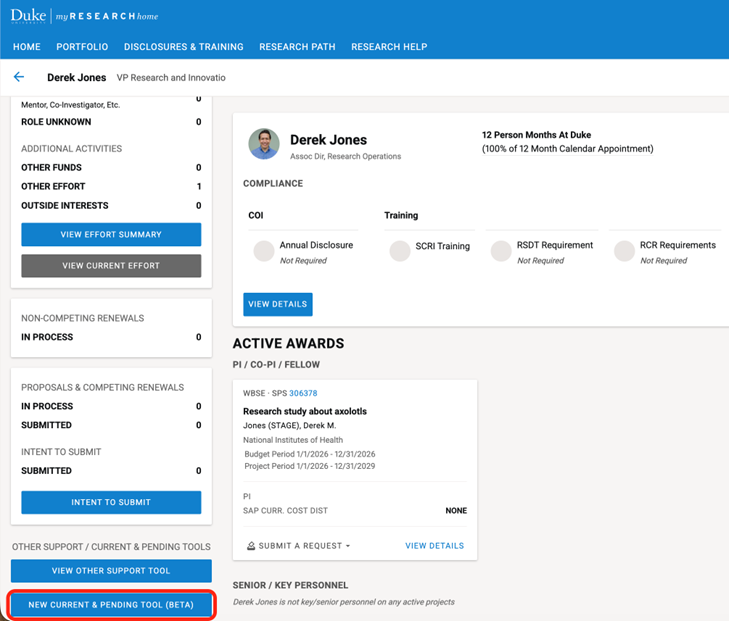
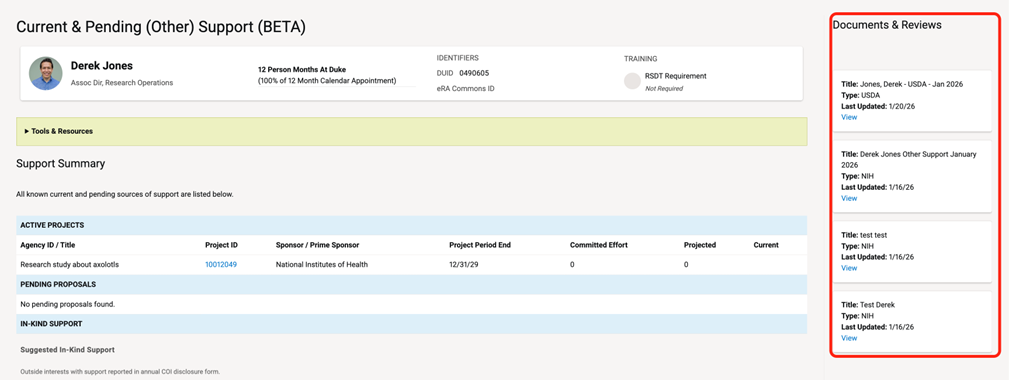
Documents in process will be shown on the right panel. To open a document, click “VIEW” on the document card.
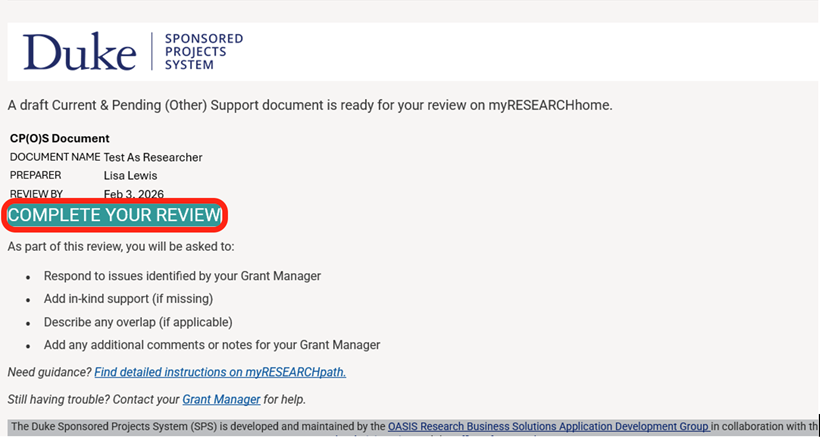
When a document is ready for your review, you will receive an email notification. Click the “COMPLETE YOUR REVIEW” button in the email.
The other support document for review will display.
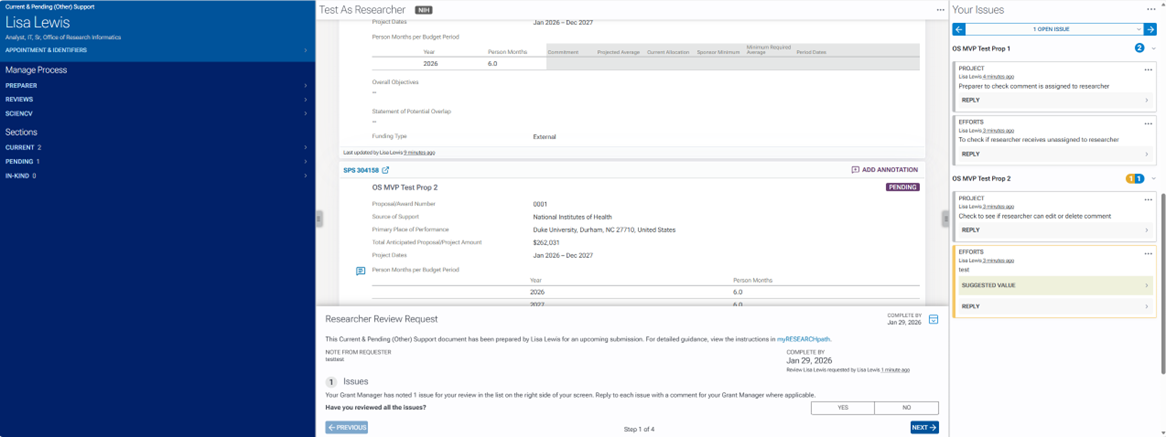
In the left margin of the other support document tool, under Sections there are options to navigate within the other support document.
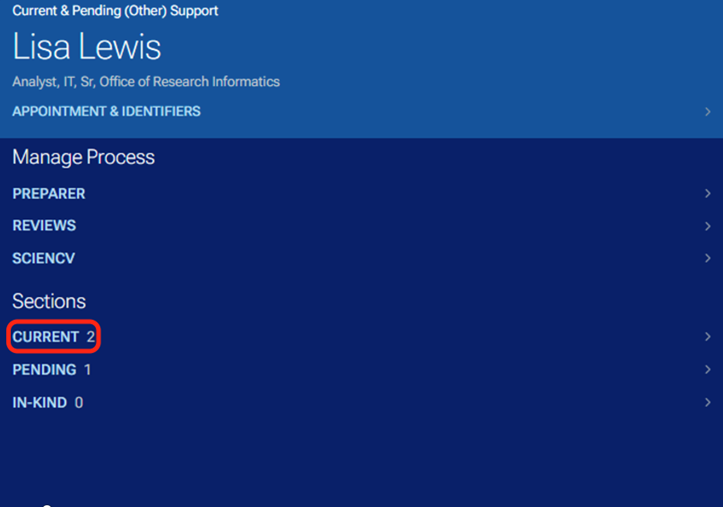
By clicking on the section titles or the right arrows, you can expand to see the detailed projects that are current and pending as well as any in-kind information.
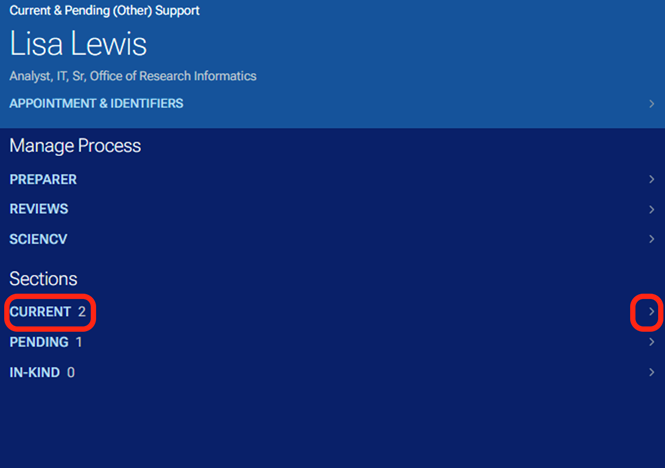
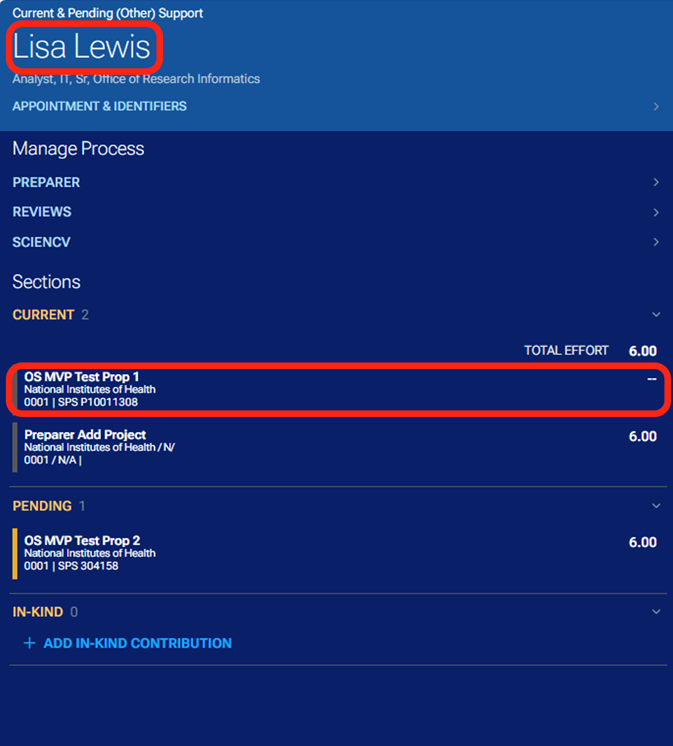
By clicking on the project titles or in-kind item, you can navigate to the associated project or in-kind information.
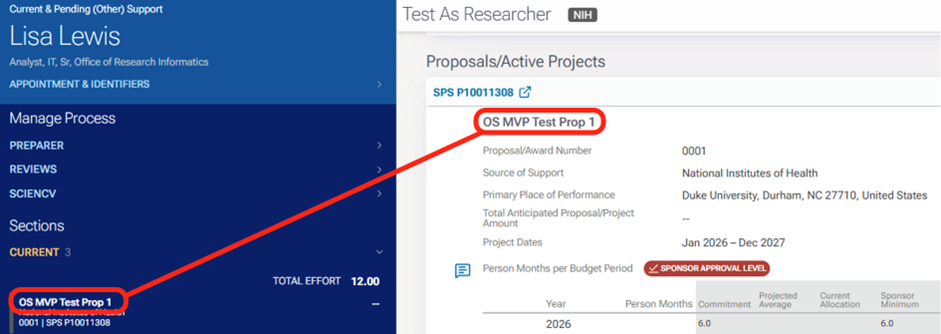
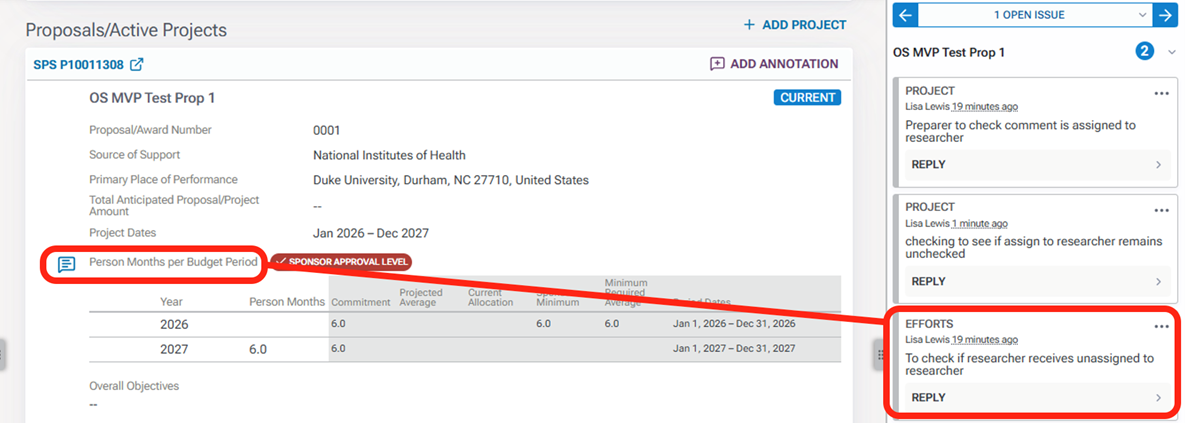
Annotations are the right margin. Just as with clicking the project titles, when you click on the annotation, you are navigated to the area within the other support document associated with that annotation.
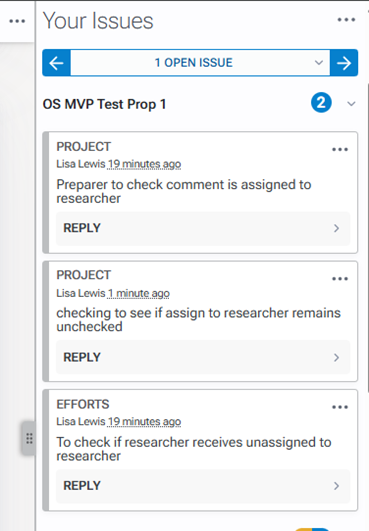
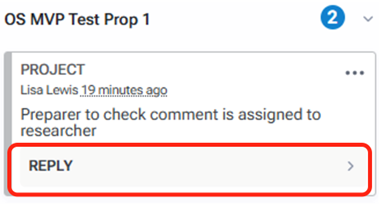
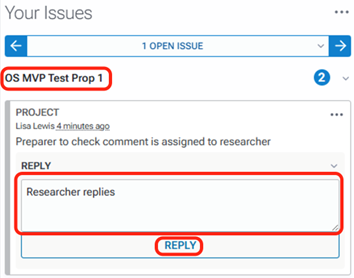
To reply to an annotation, click the reply button on the comment to which you would like to reply. Type your response and click the reply button.
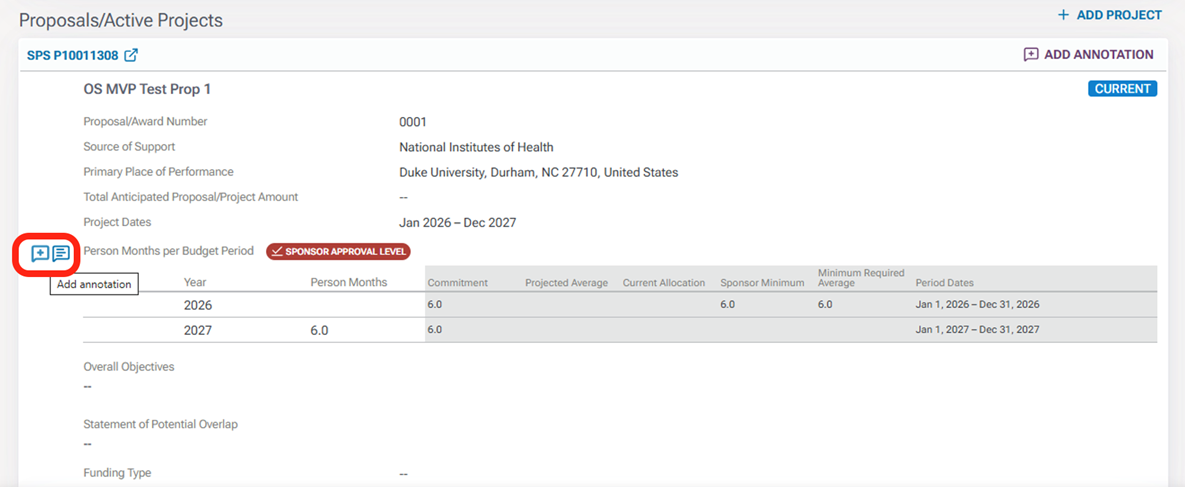
You can also add annotations to the document yourself for the preparer to review. Locate the area within the document where you would like to comment by hovering your mouse pointer over the and clicking the Plus icon.
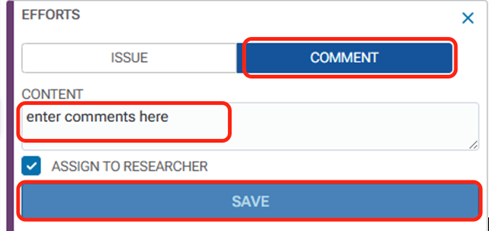
In the annotation panel in the right margin, you will see the annotation box open. Enter your annotation in the “Content” field and click Save.
Reviewing an Other Support document
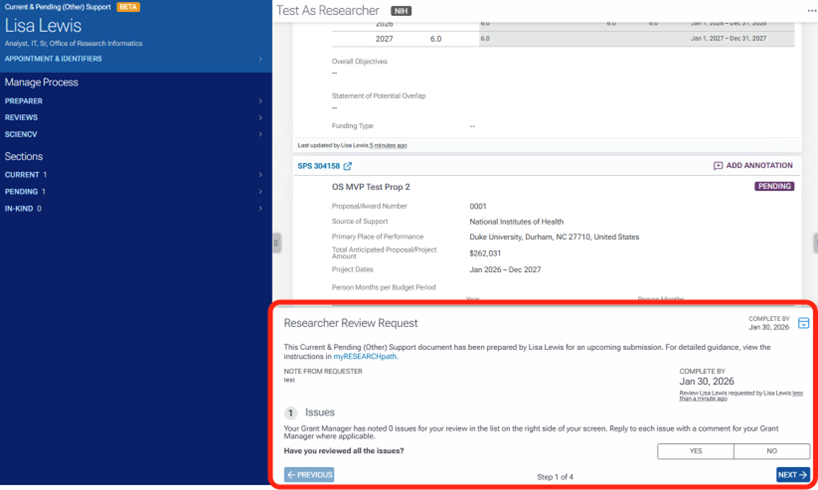
Located in the bottom center is the Researcher Review Request. This is where you will review any issues that the preparer has noted, review and add any in-kind contributions, add any project overlap, and make any additional notes regarding the support doc for the preparer.
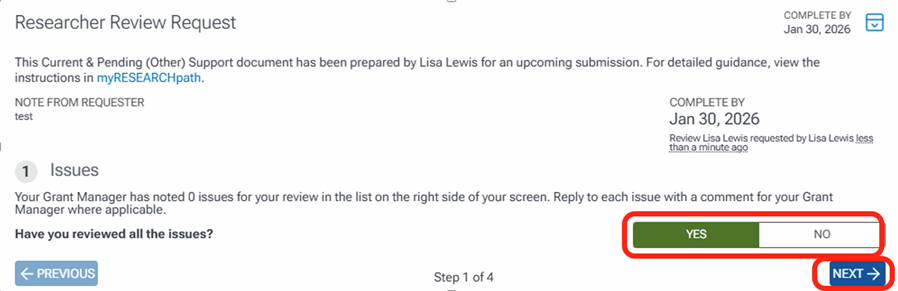
The first task when reviewing is to review any issues and comments listed in the right margin. Once completed, answer question 1 as yes or no and click Next.
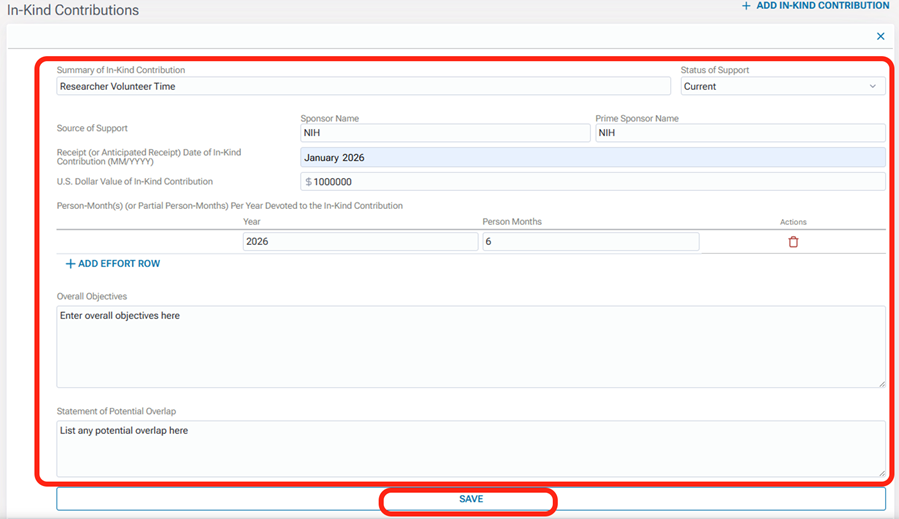
The next task is to review In-Kind Contributions and add any if needed. To add In-kind contributions, click the + ADD IN-KIND CONTRIBUTION button which will navigate you to the area to add In-Kind contributions.

Enter information in all fields and click Save.
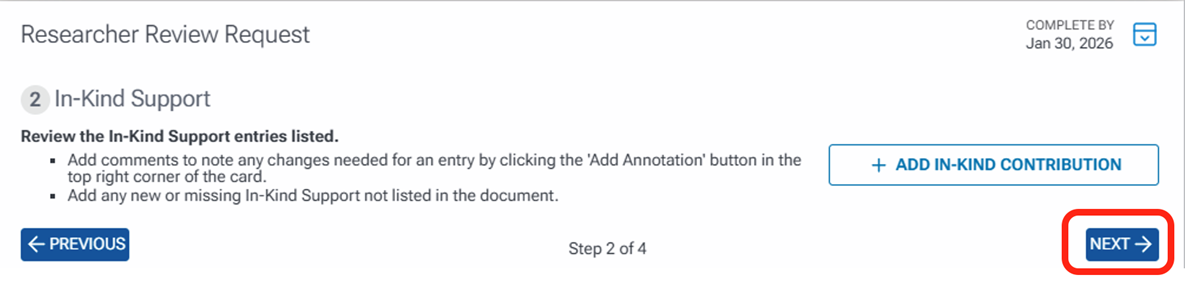
Once you have entered and saved the in-kind contribution information, click Next on step two of the review tasks.
Step 3 of the review is to review any overlap. If you choose Yes in this review, additional fields will display. Select the projects with overlap in the “Select Projects with Overlap” field and provide an explanation for the overlap associated with that project in the “Explain the budgetary, scientific, or commitment overlap” field. Click Next.
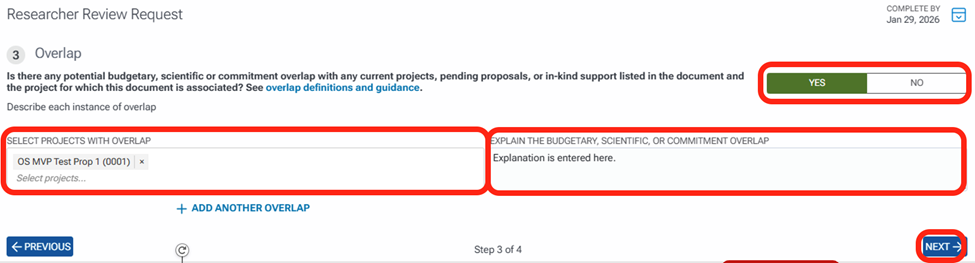
If there is no overlap, click No and then Next.

The next task is to do a final review of the document and add any additional notes that you cannot list as an annotation associated with a specific area in the document. After entering your notes, click the Submit Review button. You can also click the Previous button to go back to any of the other review tasks if needed before submitting.
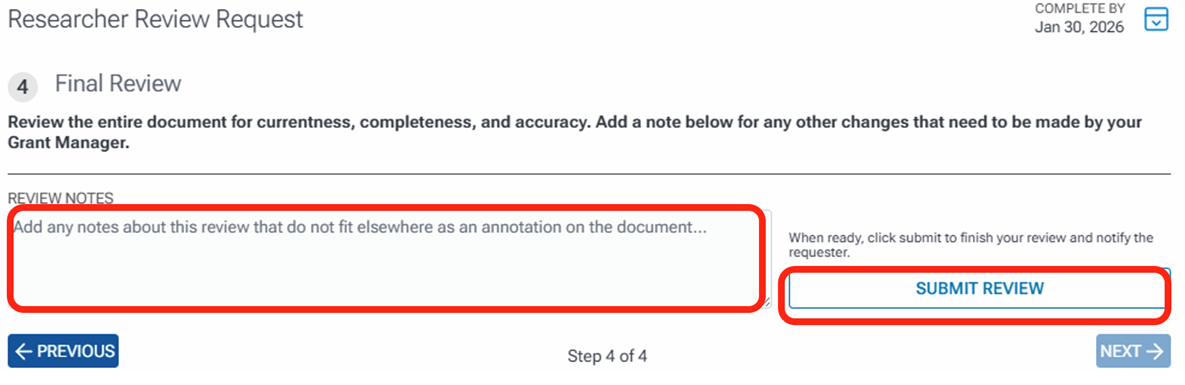
Once you submit the review, the Preparer will receive an email notifying that the review is complete.
SciENcv upload and certification
Download XML File:
- Click the down arrow on the attachment, choose 'Save As', and save the file to your computer.
- If you cannot access the attachment, download the file using the download link in the email body.


Access SciENcv:
- Log in to SciENcv using your eRA Commons, ORCID, or Duke credentials (if linked).
- If you have not linked your eRA Commons or ORCID accounts to NCBI, setup you need to follow these steps first.
- Navigate to SciENcv if you land on the NCBI dashboard by selecting Manage SciENcv

- If you are a delegate, ensure you are viewing the correct investigator’s profile via delegated access.
Create a new NIH Other Support document
- In SciENcv, select Create a New Document (+ New Document Button)
- Enter a clear document name
Include investigator name and year (e.g., Smith-NIH-OtherSupport-2026) - Choose NIH Current and Pending (Other) Support Common Form for the Document Type
- Select Upload an XML file for the Data Source
- Choose the XML file you downloaded to your computer in Step 1.


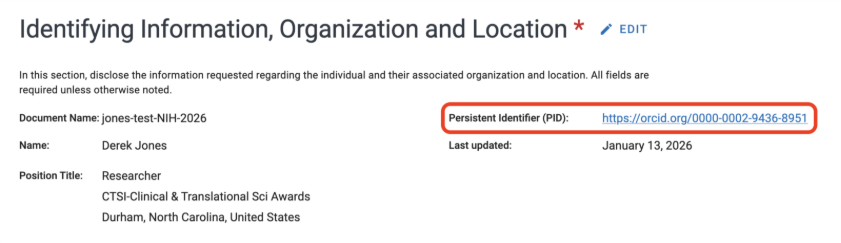
Verify your ORCID is linked to the document
Note: There is a known issue impacting the Persistent Identifier (ORCID) when using the XML upload method.
- Confirm your ORCID appears as the ‘Persistent Identifier (PID)’ in the Identifying Information section at the top of the document.
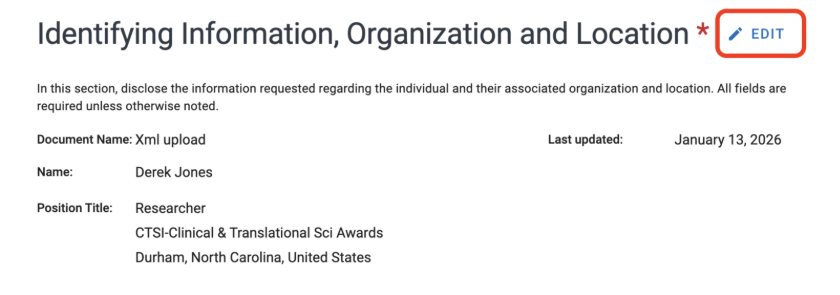
If your ORCID is not displayed, click ‘Edit’ next to the section label
- Click the text ‘Link your ORCID iD’ at the bottom of the pop-up. You may need to scroll.
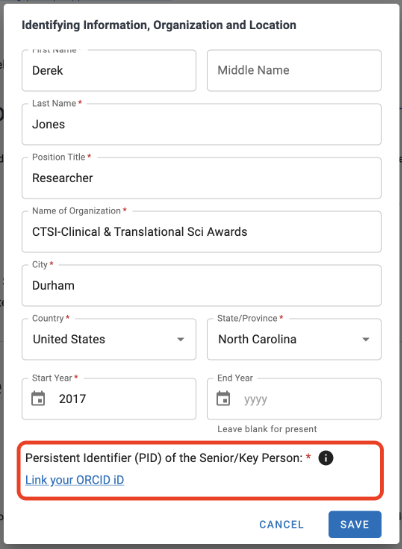
- Click ‘Save’. Your ORCID will now display and you can continue to next step.
Review for completeness and consistency
Verify all data populated accurately from the XML file:
- Confirm all active and pending support is included
- Ensure effort commitments are accurate
- Review overlap statements for clarity
- Confirm foreign and in-kind resources are fully disclosed
Certify and download the NIH Other Support
Certification is required by NIH. Click ‘Download PDF’ button to initiate the certification. Clicking ‘Certify’ applies a certification at the end of the document.

What certification means
By certifying NIH Other Support in SciENcv, the individual affirms that:
- The information is current, accurate, and complete
- All required support has been disclosed
- The certification statements included by NIH are true at the time of certification
Certification requirements
- Only the individual named on the form may certify
- Delegates (including grant managers) cannot certify
- Certification occurs within SciENcv, not in Duke systems
After certification
- The digitally certified PDF will download to your computer
- Save the PDF using a clear naming convention
Include investigator name, sponsor, and year (e.g., Smith-NIH-Biosketch-2026)
Do not edit the PDF after download (aside from renaming the file). Any changes require returning to SciENcv and re-certifying.
Return the certified PDF to your Grant Manager
- Upload the file to the Duke tools using the 'Upload' link in the email that provided you with the XML file. Your Grant Manager will be notified when uploaded.
- Alternatively, email the PDF directly to your Grant Manager.