SPS Budget Management User Guide
Budgets are created as part of the proposal development process. Prior to release of the budget management feature, users could create and edit only one budget per proposal. This made it difficult for grant managers and research administrators to account for different budget scenarios, create internal budgets, and plan for outyears. The new budget management feature provides users with the ability to create multiple budgets per proposal and select one as the primary to be submitted to the sponsor.
Manage budgets navigation
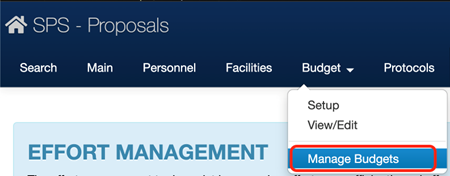
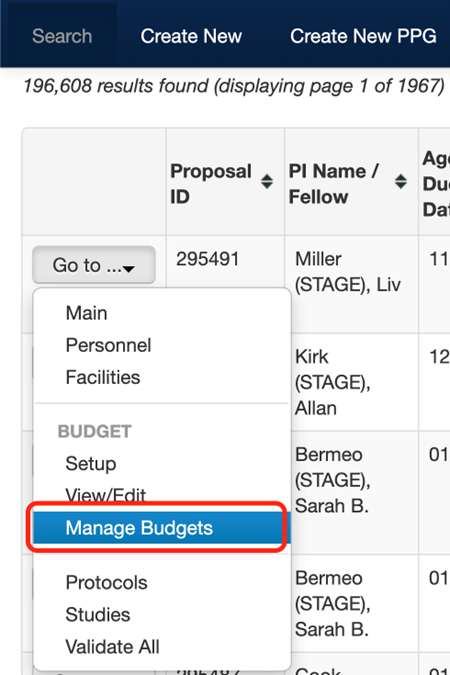
To navigate to the manage budgets page, select “Manage Budgets” from the Budget dropdown at the top of the page OR select “Manage Budget” from the Go to… dropdown in the search results.
In proposal:
In search results:
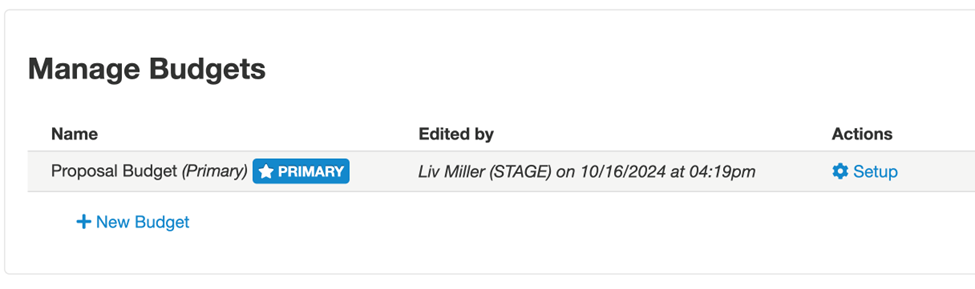
If this is a new proposal and a budget has not been created yet, the automatically created blank “Proposal Budget” will display, and the only available action for this budget will be Setup because the budget period setup and template are required to view and edit the budget.
To switch to another budget, click the “Other Budgets” dropdown from the View/Edit or Setup pages, then click on the budget you want to navigate to.

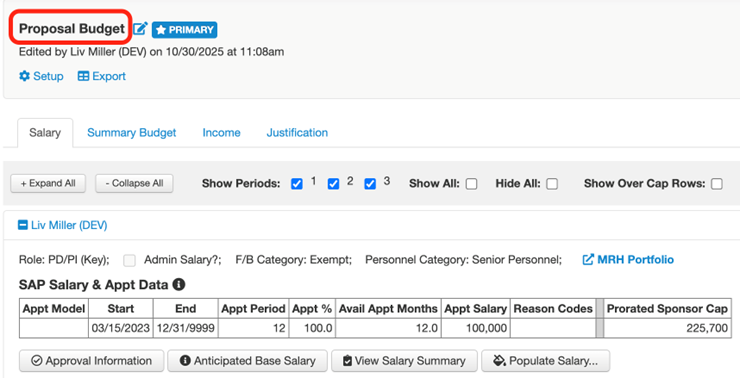
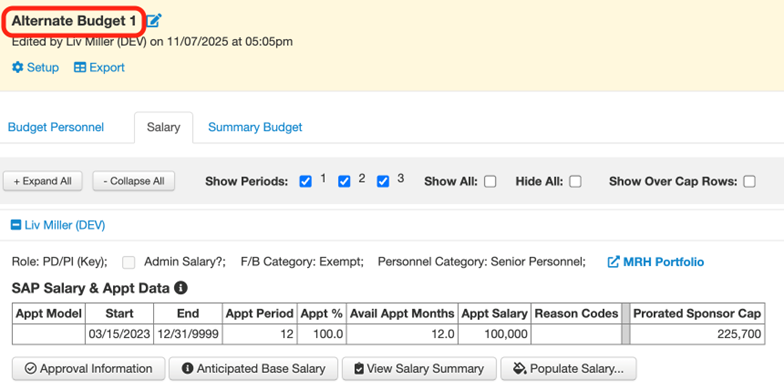
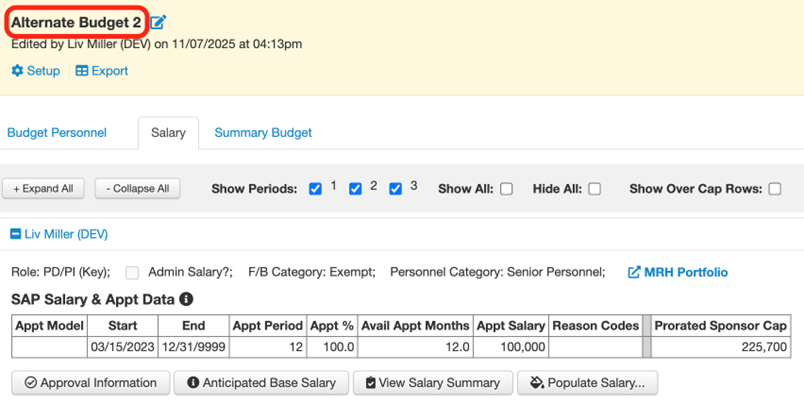
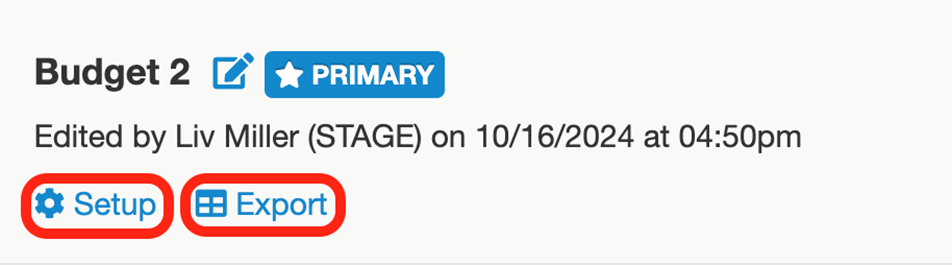
The Setup and Export buttons are under the budget name. For example, if I clicked “Export” in the screenshot below, Budget 2 would be exported to an Excel spreadsheet.
Copying budgets
Copying a budget copies the entire budget, including the template, salaries, effort rows, and all line items. A budget can be edited, deleted, made primary, renamed, and exported after it has been copied. Copying a budget is the recommended method when drafting multiple budget variations for one proposal (i.e., “what-if” scenarios).
To copy a budget, click “Copy Budget” on the Manage Budgets page.

Enter the new budget name in the popup and click OK.

A green success message will briefly display, and the new budget will be added to the list of budgets.

Promoting a budget to Primary
When a proposal is first created, it has only the primary budget (because no additional budgets exist yet). Any budget variation can be made the primary. The primary budget is the only budget that is considered official and will be submitted to the sponsor. Editing other budgets will not affect the primary budget.
To make a budget primary, click “Make Primary” on the Manage Budgets page.
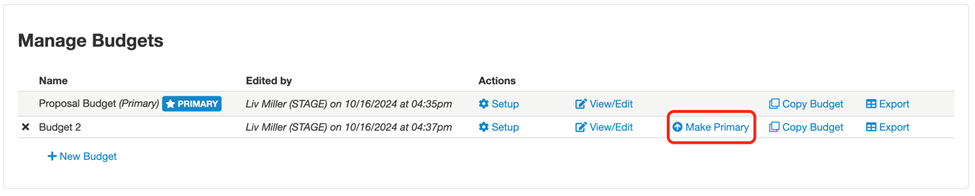
A green success message will briefly display indicating the budget has been promoted to the primary budget.

Creating a new budget
Creating a new budget is only advised if the budget will have a different template or budget periods than any other budgets currently in the proposal. Otherwise, it is recommended to copy an existing budget and modify the copy.
To create a new budget, click “New Budget” on the Manage Budgets page.

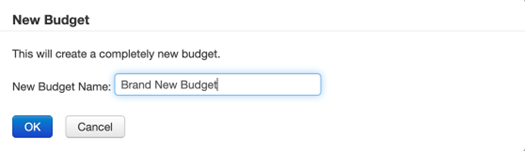
Enter a name for the new budget in the popup and click OK.
A green success message will display indicating the new budget has been successfully created, and the budget will be added to the list of budgets.
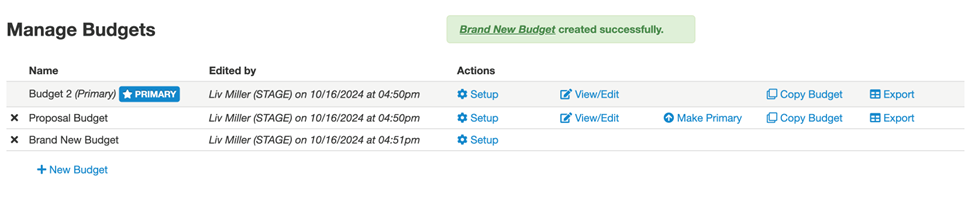
Because this is a new budget without a budget period setup nor template, the only available action is Setup. Click Setup on the new budget.

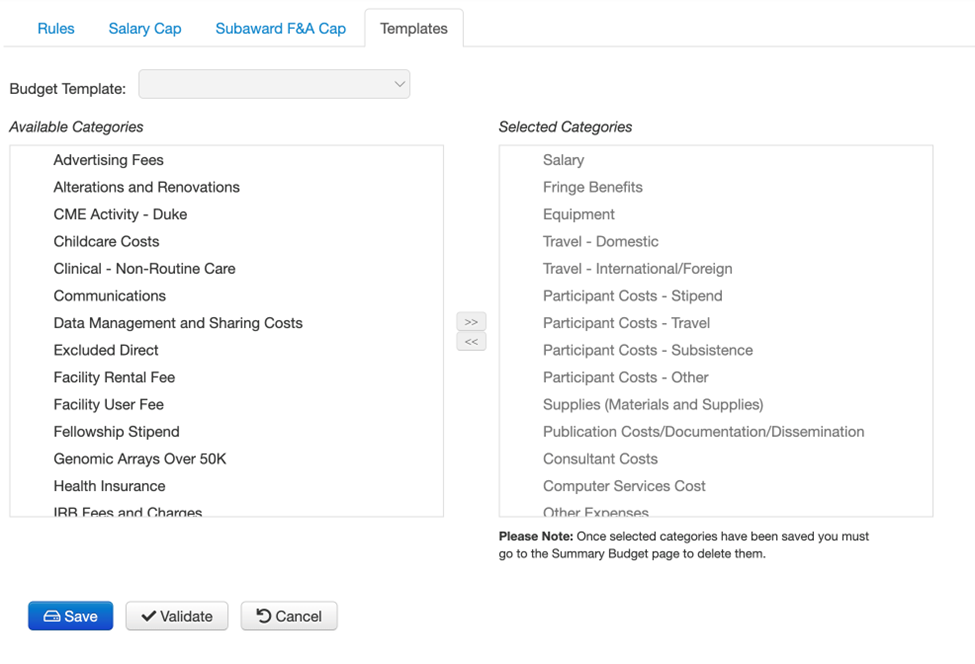
Set up the budget periods in the Rules tab, and select a template in the Templates tab. Then, click Save.
NOTE: Each budget can have a different budget period setup, salary cap, subaward F&A cap, and template.
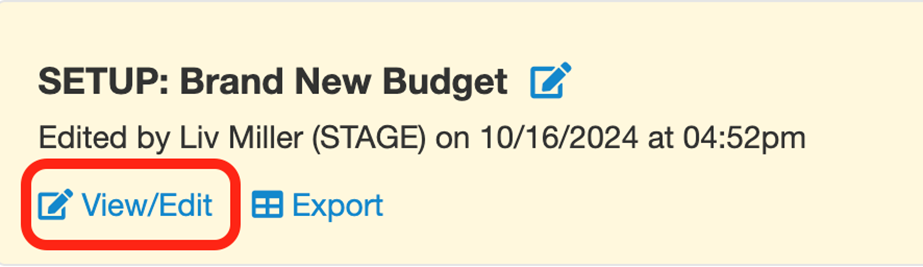
Click View/Edit to go to the Salary and Summary Budget tabs.
Fill in the Salary and Summary Budget tabs and click Save.
Renaming budgets
To rename a budget, click on either Setup or View/Edit; the renaming functionality is in both places.

Click the pencil icon next to the budget name.
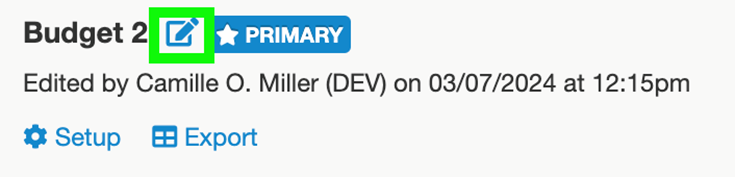
Enter the new name in the New Budget Name field and click OK.

The budget has been renamed.
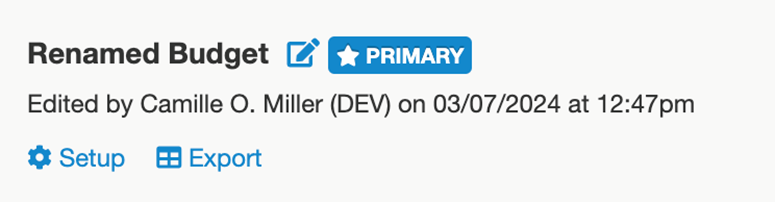
Deleting budgets
Please note that you cannot delete the primary budget. Only budgets that are not the primary are able to be deleted.
To delete a budget, click the X next to the budget you want to delete.

Click “Yes” on the popup if you wish to proceed with deleting the budget, or “No” if you do not wish to delete the budget. Note that deleting a budget cannot be undone.
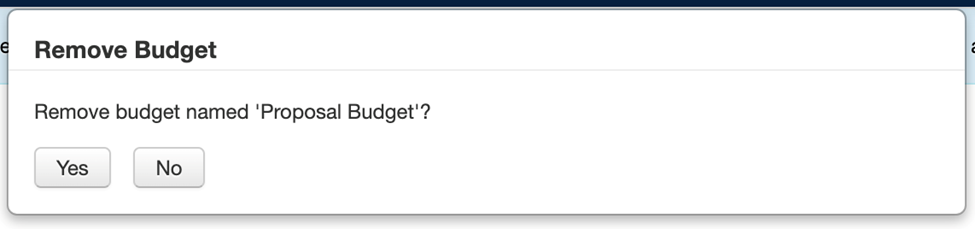
The budget will no longer be in the list of budgets.

Budget justification and cost sharing
The budget justification and cost sharing rules live on the primary record only. Different budgets within a proposal cannot have different budget justifications nor cost sharing data. You will be unable to modify these sections on any budget other than the primary one. These data elements persist throughout the record, so even if you promote another budget to primary, the justification and cost sharing data will remain the same.
To edit the budget justification, click on View/Edit on the primary budget.

Click on the Justification tab.
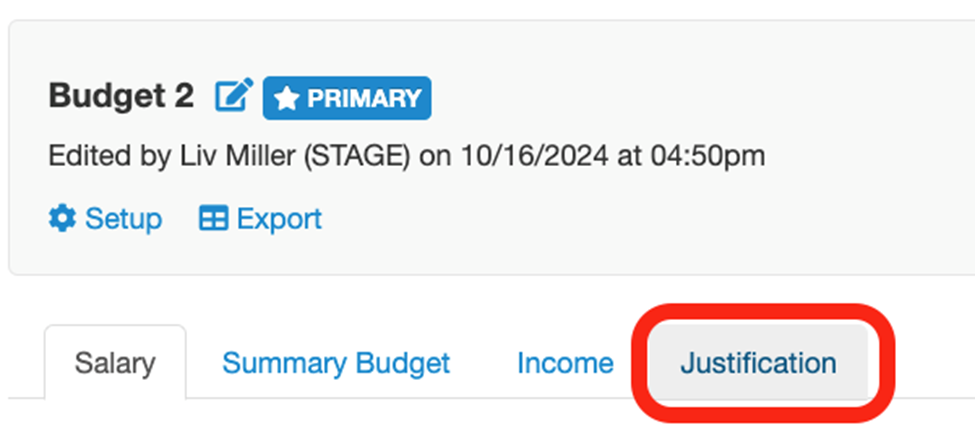
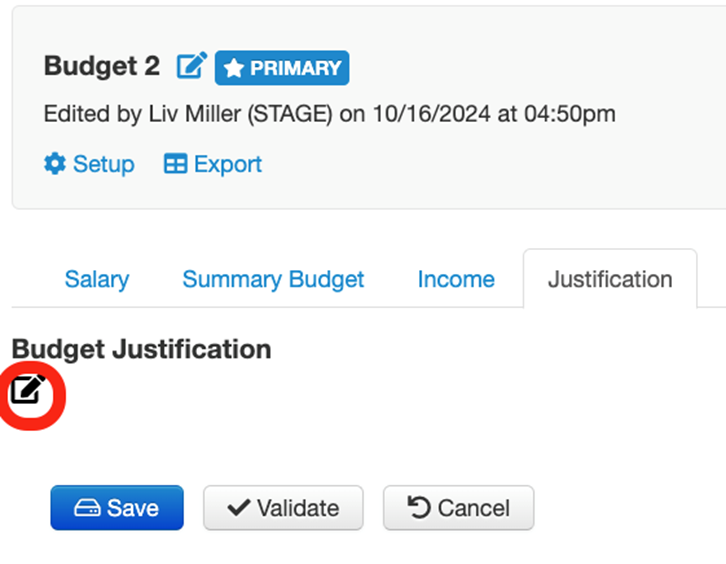
Click on the pencil icon.
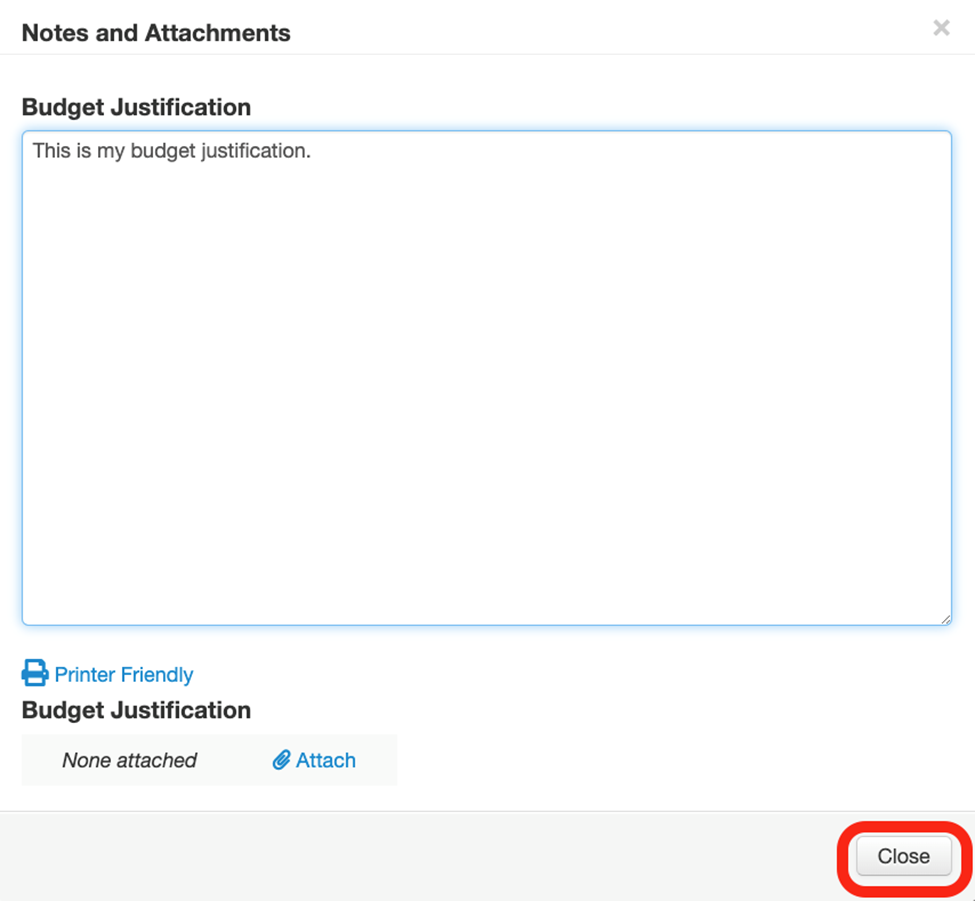
Modify the text field, then click Close.
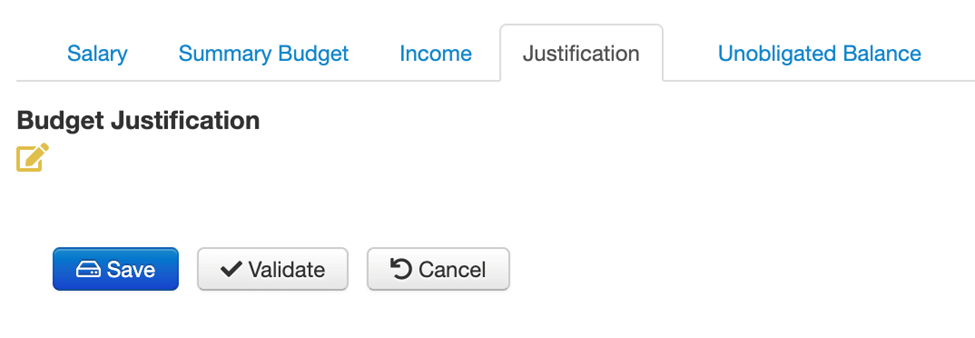
The pencil icon will turn yellow indicating that a change has been made. Click Save.
This justification will now persist throughout the record, and to further edit it, you must always edit from the primary budget.
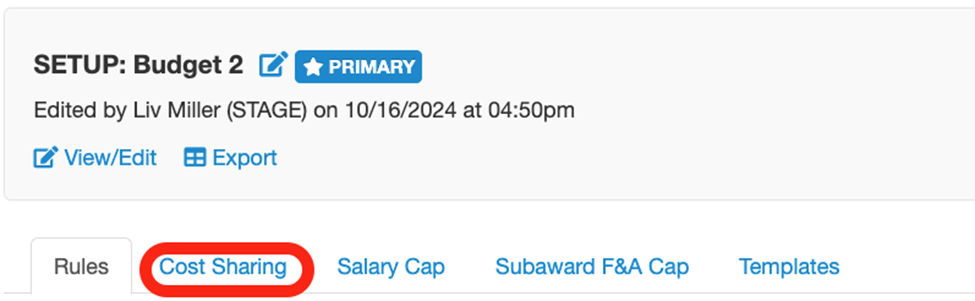
The Cost Sharing tab, like the Budget Justification, can only be edited on the primary budget. Budget variations cannot have different cost sharing data at this time. However, different budgets can have a different salary cap and/or subaward F&A cap.
Different salary cap per budget
Each budget variation can have a different salary cap if necessary.
To modify the salary cap, click “Setup” on the budget you’d like to edit these values for.

Click on the Salary Cap tab to modify the salary cap.
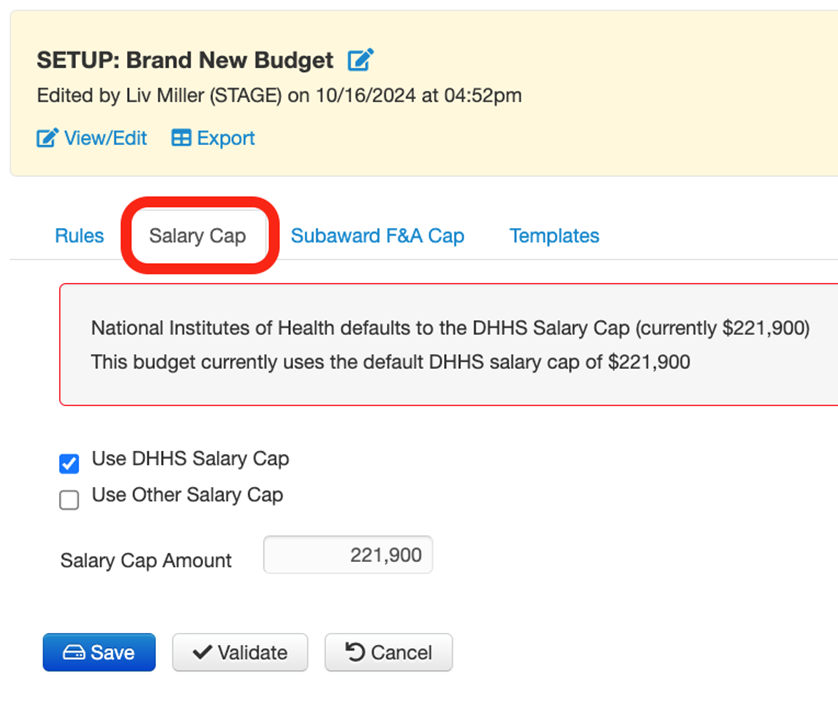
Uncheck “Use DHHS Salary Cap,” and check “Use Other Salary Cap.” Then, enter the new salary cap amount in the Salary Cap Amount field.
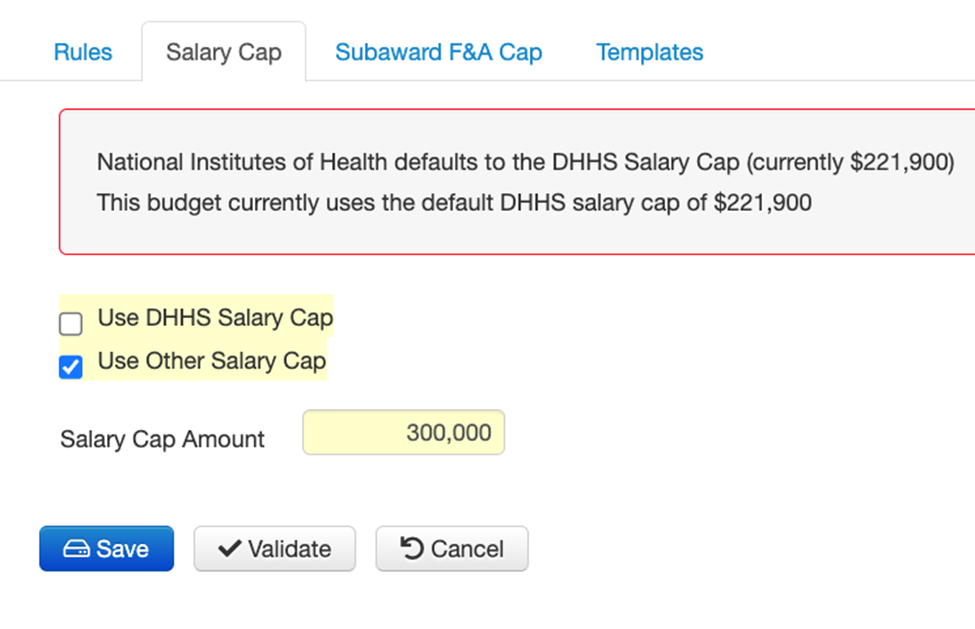
Click Save.

We can then confirm that the salary cap remains unchanged for the other budget(s).
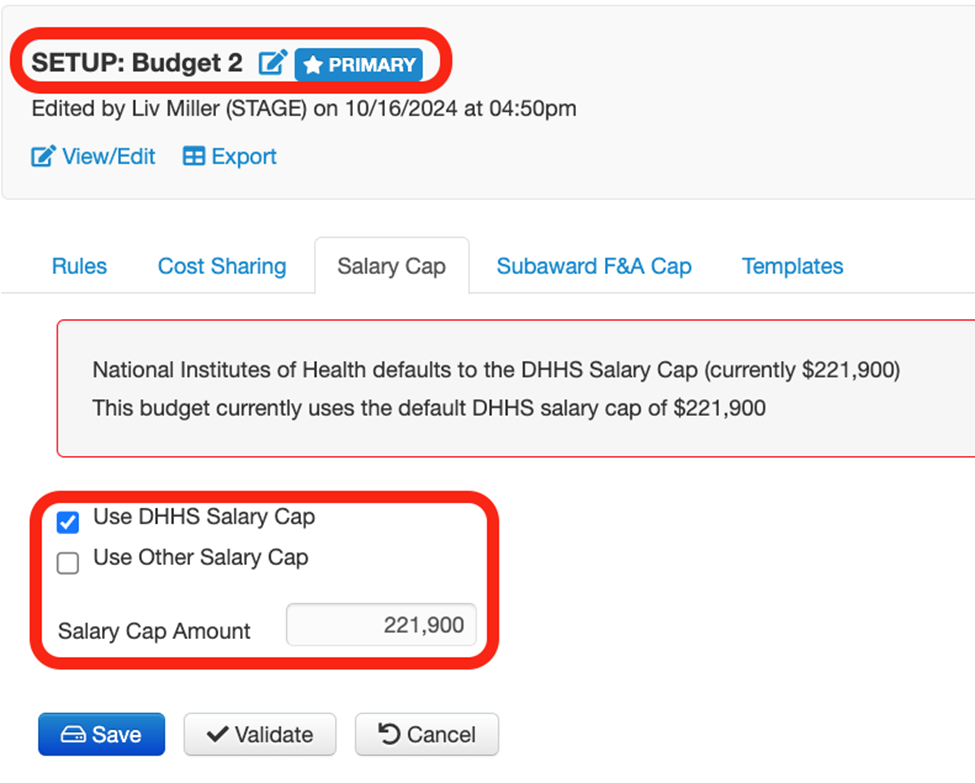
Different subaward F&A cap per budget
Each budget variation can have a different subaward F&A cap if necessary.
To modify the subaward F&A cap, click “Setup” on the budget you’d like to edit these values for.

Click on the Subaward F&A Cap tab to modify the subaward F&A cap.

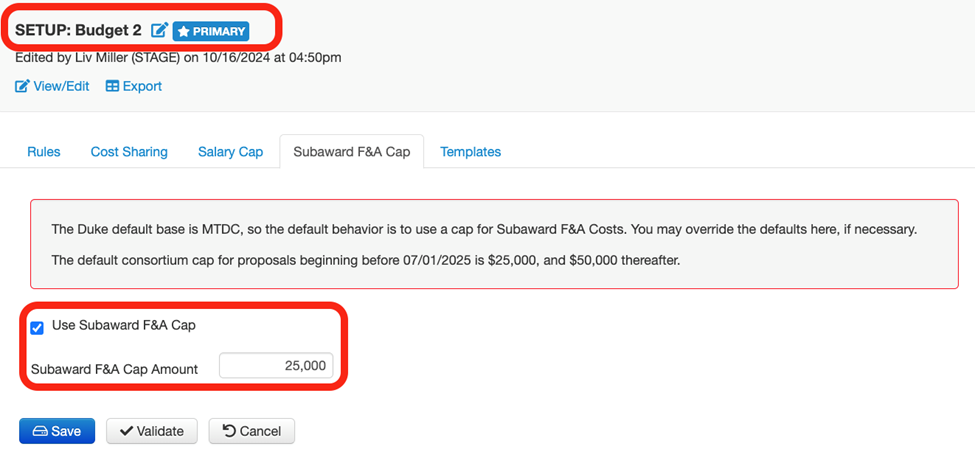
You may either uncheck “Use Subaward F&A Cap,” which would remove any subaward F&A cap for this budget only, or you may enter a different amount in the subaward F&A cap amount field. In this example, I’ll remove the subaward F&A cap. To do so, uncheck “Use Subaward F&A Cap.”
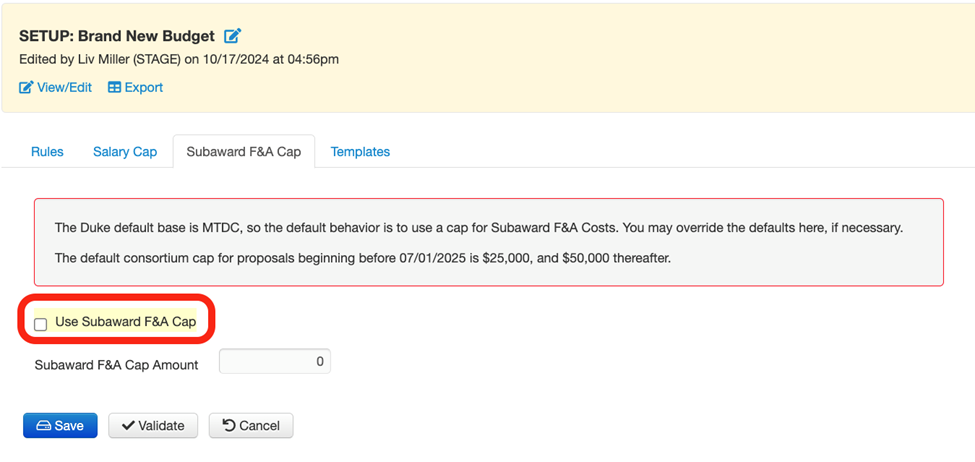
Click Save
We can then confirm that the subaward F&A cap remains unchanged for the other budget(s).
Different personnel per budget
Each budget within a proposal can have different personnel on it, with the exception of the proposal’s PI. The PI will be on all budgets within a proposal and cannot be removed or replaced. Additionally, personnel added to the proposal’s Personnel roster will be added to all budgets within a proposal; these personnel can be removed from non-primary budgets, however. To manage personnel on non-primary budget, a new tab titled “Budget Personnel” has been added to non-primary budgets.
Personnel Roster vs. Budget Personnel
All personnel added to the Personnel roster will automatically be added to every budget, whether primary or non-primary. For example, in the screenshot below, there are 4 personnel on this proposal’s roster, including a TBD person. This will result in all 4 individuals being added to each budget created within this proposal.
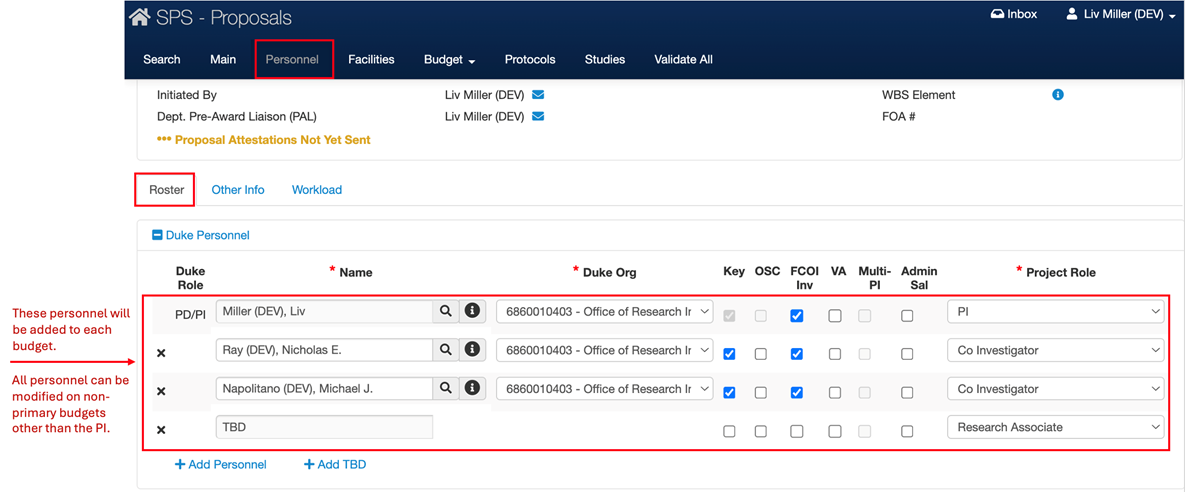
Individuals on the personnel roster will be checked as “On Proposal” when viewing the Budget Personnel tab of an alternate budget. Personnel who are on alternate budget(s) only and are not on the personnel roster will have “On Proposal” unchecked, indicating that they are not on the proposal.

To manage personnel on an alternate budget, navigate to Budget > Manage Budgets and click “View/Edit/Manage Personnel” on the budget you will be managing personnel for.

To add a person or a TBD, click “Add Person” or “Add TBD.” Enter their name and select a role from the Project Role dropdown, then click Save.
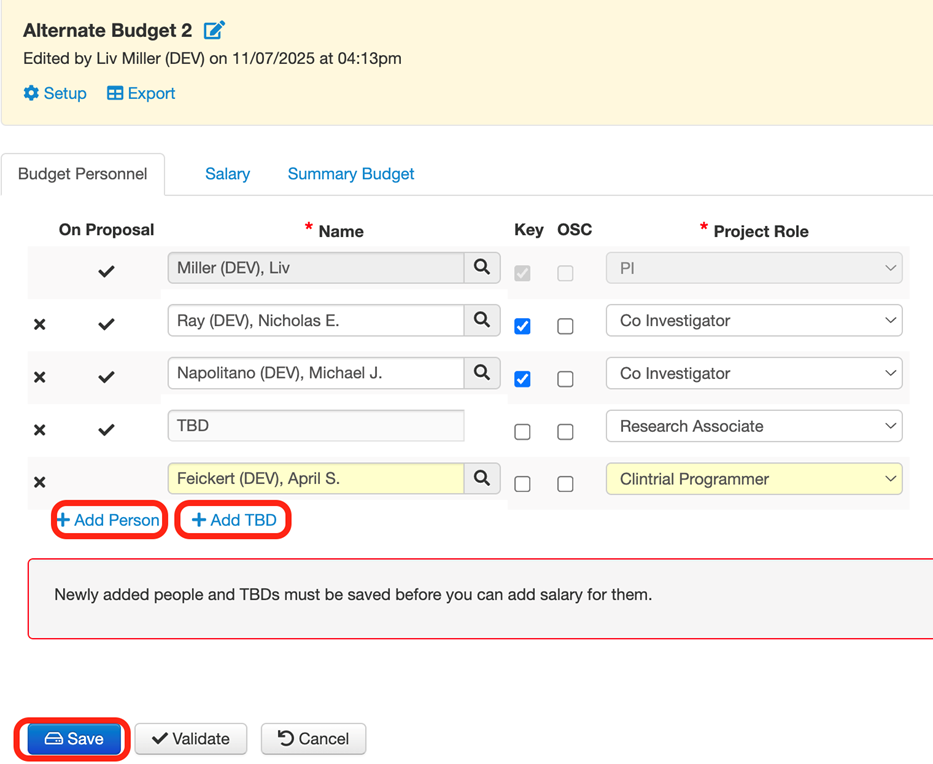
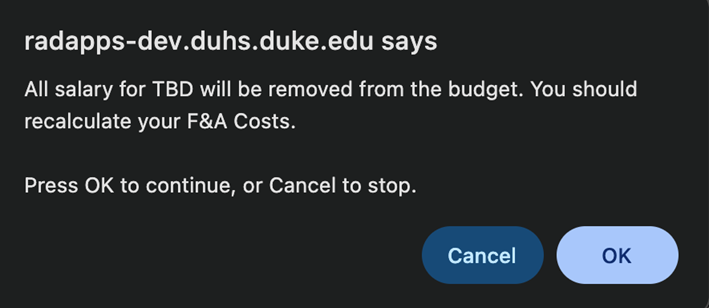
To remove a person or TBD, click the X next to their name. This will remove them from this budget only.

Click OK on the confirmation box popup.
Click Save
Salary approvals
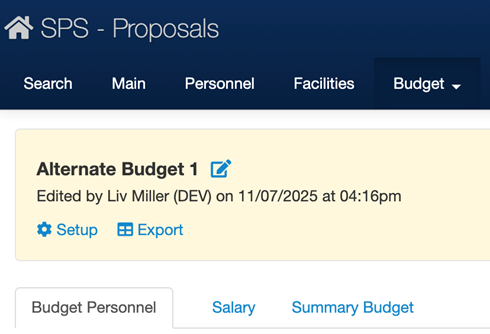
You may either populate salary manually or request salary approval(s) for a person. Salary approvals only need to be requested once for each person on a proposal, even if they are on multiple budgets within the proposal. To request a salary approval for a budget person, navigate to the Budget Personnel tab of the non-primary budget.
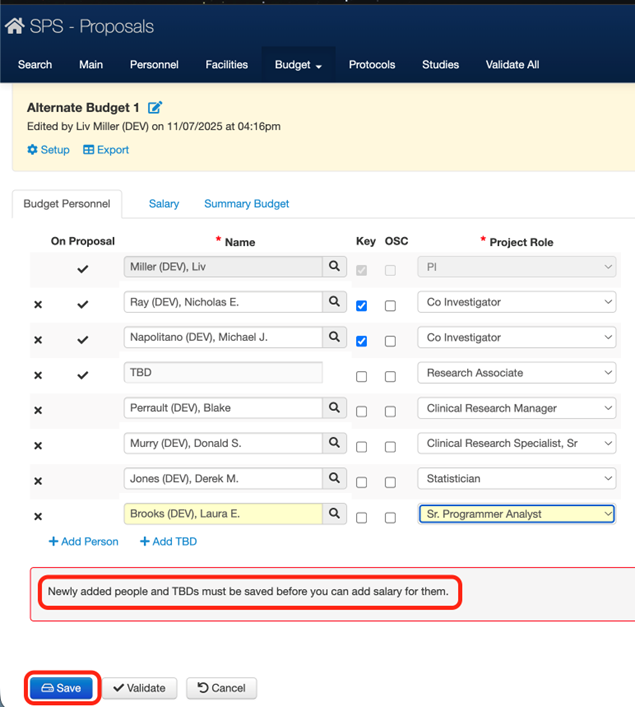
Ensure you Save any newly added people or TBDs.
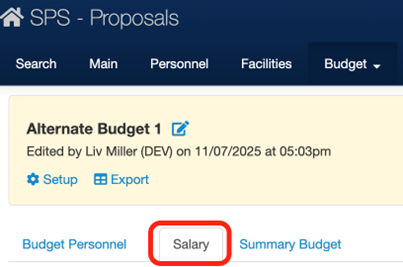
Click on the Salary tab within the alternate budget.
Click “View Salary Reviewers” under the person who you are requesting salary approval for, then click the email inbox icon.

Click OK on the pop-up confirmation box.
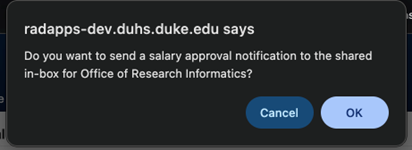
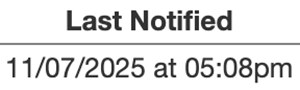
The “Last Notified” field will then update.
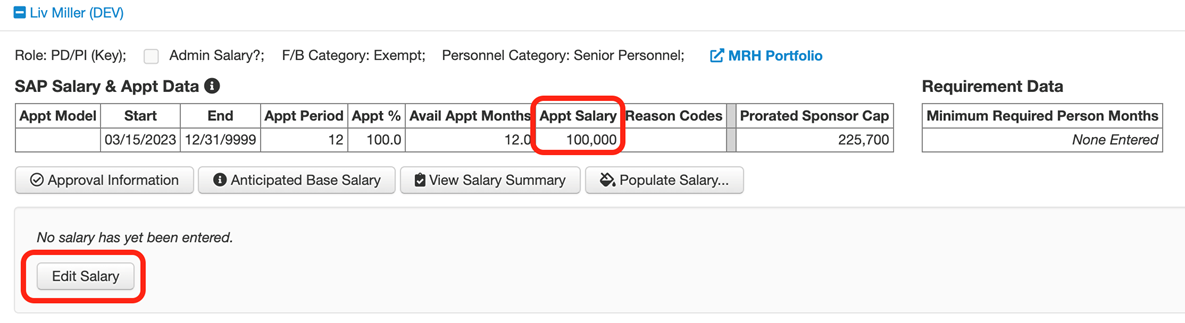
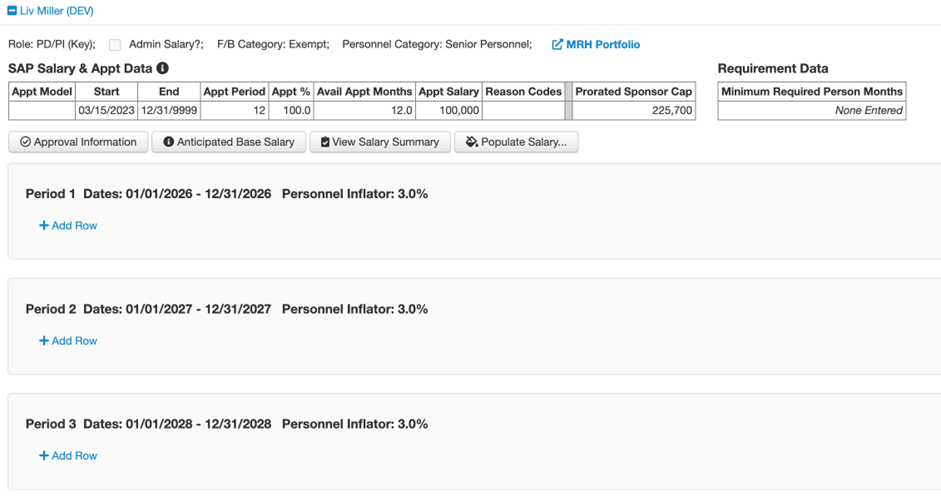
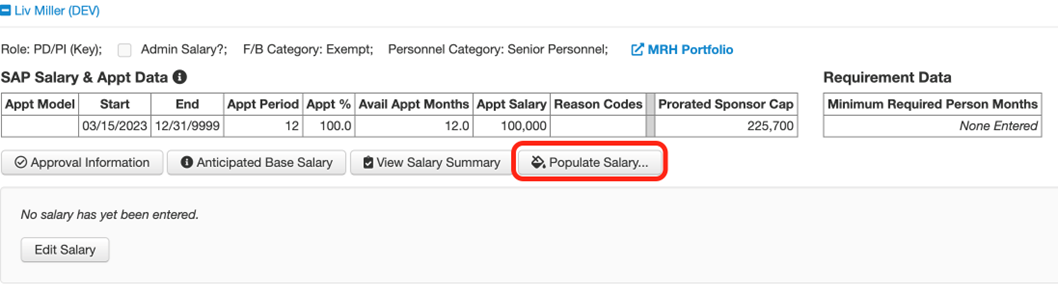
Once the salary has been approved, the dollar value will automatically update in the “Appt Salary” box. Click “Edit Salary” to add effort rows manually, or “Populate Salary” to add rows based on person months per year or effort percentage. You will only need to click “Edit Salary” to show the effort rows if your budget has more than five people.
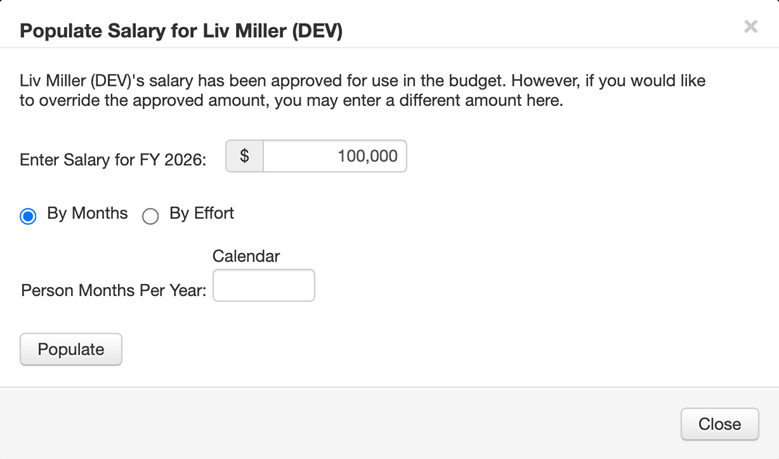
This person’s salary is now approved across all budgets within this proposal, including the primary budget, and any newly created budgets they are added to in this proposal.